
How To Manage Tags
You can also add tags to your conversations; you can choose between default tags and customizable tags. This way you can filter your chats easily.
Creating a tag
Head over to the inbox and click on any conversation
Click on Add New Tag at the bottom right corner of the screen and a window will be displayed.
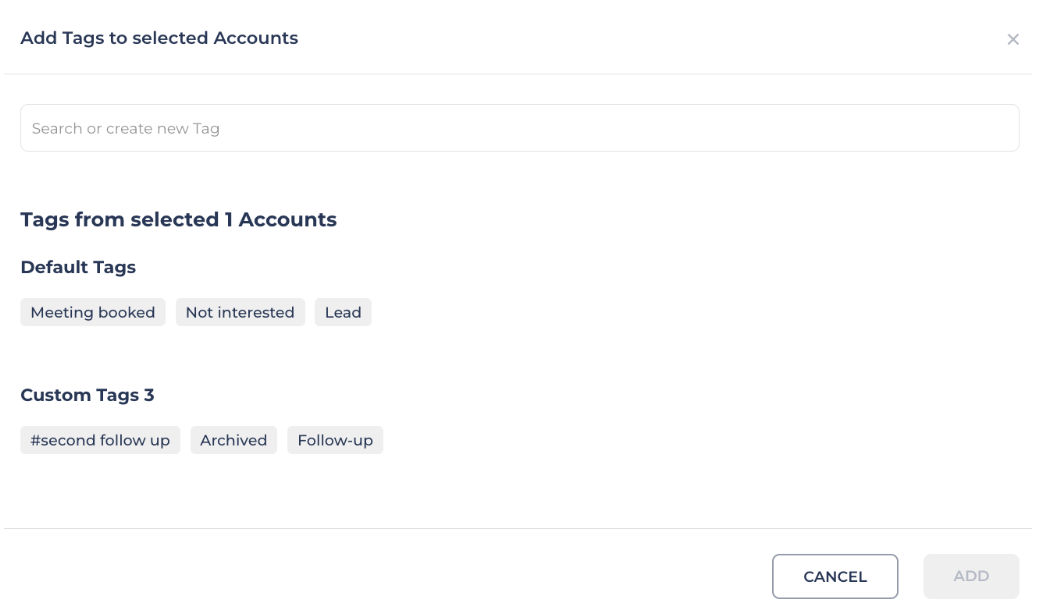
To create the tag, simply type the name of the tag on the field and click create new
NOTE: if the tag is not created, the message create new will show. If the tag is already created, it will look for the tag so it can be selected.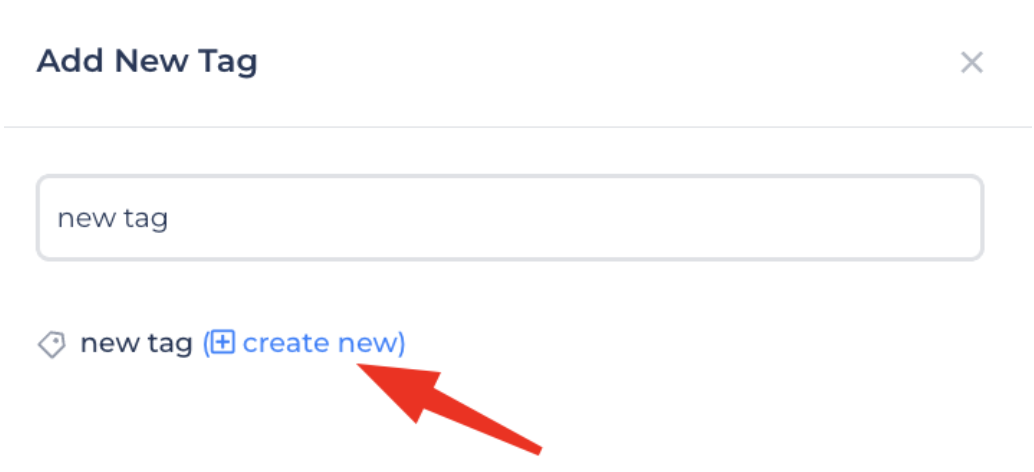
The created tags will show in a dropdown menu at the top of the inbox.

Filter conversations by customizable and default tags
Click on the tags menu
Click on the drop down menu and all the tags will be displayed (default and custom)
Click on the desired tag and all the conversations with that tag will show up
Manage your Tags
In order to manage your contacts’ tags, click on on the three dots on the upper right corner of the contacts list and you will see Add/Remove tags and Delete tags.
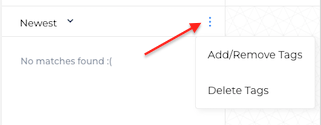
When clicking any of the options, you will have the option to either add tags to multiple contacts or remove tags from multiple contacts at the same time.
How can you do this?
1. Add tags
Click on the three dots & click on Add/Remove tags
Select all the contacts you wish to add a tag to.
Click on the plus [+] icon
Select a default tag, an already created tag, or create a new tag
Click ADD
2. Remove tags
Click on the three dots & click on Add/Remove tags
Select all contacts that you wish to remove a tag from.
Click on the minus [-] icon
You will be shown all tags attached to your selected contacts
Select the tags that you want to remove, or remove all.
If tags were selected, click REMOVE